A Small Tool That Fixes a Big Everyday Headache
There’s a specific kind of frustration that everyone who works with documents has felt at least once. You take a photo of something with your phone, or you scan a page on the office printer, and the file that comes out is enormous — five megabytes, eight megabytes, sometimes more, for what is essentially a single flat image. Then you try to attach it to an email, upload it to a form, or send it through a messaging app, and it either refuses to go through or takes forever crawling up a slow connection. Nothing about the image itself needed to be that heavy. It’s just how modern cameras and scanners work — they default to capturing far more data than most situations actually call for.
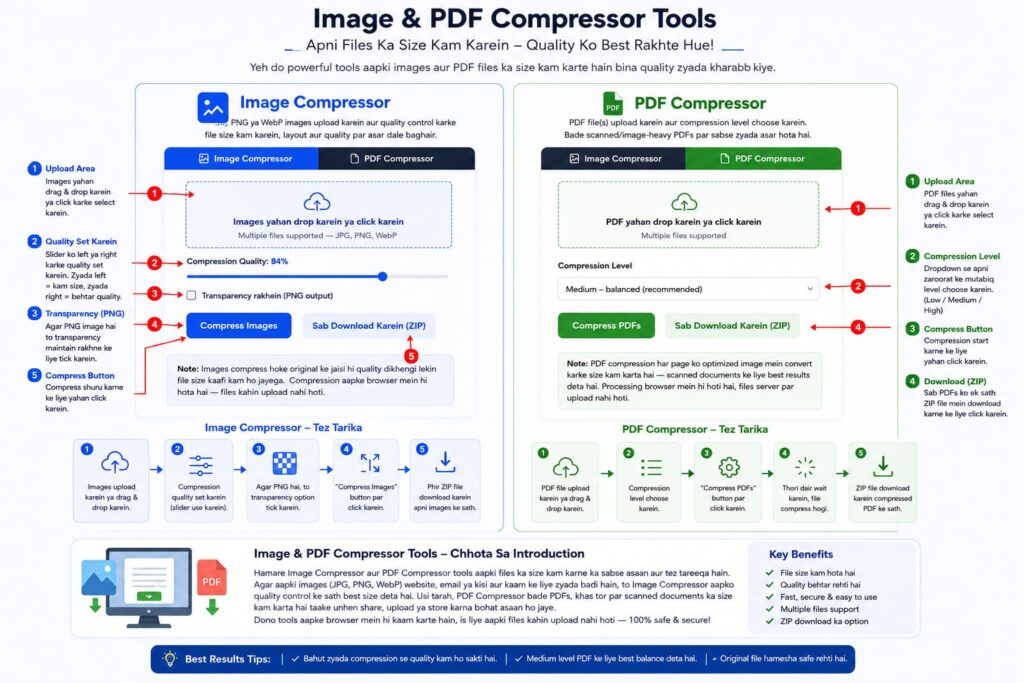
The Free Image Compressor on LigalDocs.com exists to fix exactly that problem, and it does it in a way that doesn’t ask much of the person using it. No sign-up, no payment, no learning curve. You drop a picture in, adjust one simple setting if you want to, and get back a version of that same image that’s dramatically smaller without looking noticeably different to the eye.
It’s worth pausing on why this problem is so common, because once you see the pattern, you notice it everywhere. Phone cameras today are built to capture as much detail as physically possible, because more megapixels sounds like a selling point on a spec sheet. Scanners in offices are usually left on their default settings, which almost always lean toward higher resolution than necessary, because nobody ever goes back and adjusts them. The result is that ordinary, everyday images — a photo of a signed page, a picture of an ID card, a screenshot of a receipt, a scanned certificate — end up carrying far more file size than the situation calls for.
That excess weight doesn’t add any real value. A signature scanned at an enormous resolution doesn’t look any clearer to a human eye than one scanned at a fraction of that size — it just takes longer to upload, longer to email, and longer to open on the other end. The Free Image Compressor takes that unnecessary bulk out of the picture, literally, while leaving what actually matters — the clarity, the readability, the visual content — intact.
The process is about as straightforward as it can be. You either drag an image onto the tool or click to select one from your device — JPG, PNG, and WebP are all supported, which covers pretty much anything you’d realistically be working with day to day. Once the image is loaded, there’s a single quality slider that controls how much compression gets applied. Slide it one way and you keep more of the original detail with a smaller reduction in size. Slide it the other way and you get a much smaller file, still perfectly usable for almost anything short of professional printing.
What makes this genuinely practical rather than just a novelty is that you can see the result before you commit to anything. The tool shows you the original file size sitting right next to the new, compressed size, along with the percentage you’ve saved. There’s no guessing whether the compression did anything meaningful — the numbers are right there. If eighty percent quality still gives you a file size you’re happy with and the image still looks sharp, that’s your answer. If you want to push it further because you’re working with a strict upload limit, you can watch the number drop in real time as you adjust the slider.
And because most people rarely need to compress just one image at a time, the tool supports batch uploads. Drop in ten, twenty, or more images at once, run them all through together, and instead of downloading each one individually, everything gets bundled into a single ZIP file that comes down in one click. Anyone who has ever had to compress a folder of scanned pages one at a time in some other tool will understand immediately why this matters — it turns a tedious, repetitive chore into something that takes a couple of minutes from start to finish.
Most free compression tools online take a shortcut: they convert everything to JPG and call it done. That works fine for photographs, but it breaks anything that relies on a transparent background — a scanned signature meant to sit cleanly on top of a document, a logo that needs to blend into whatever page it’s placed on, a graphic that isn’t supposed to have a visible box around it.
The Free Image Compressor gives you the choice. There’s a simple toggle to keep the image as a PNG and preserve its transparency, rather than forcing everything through the same JPG conversion regardless of what the image actually needs. It’s a small detail, but it’s the kind of small detail that tells you the tool was actually built by paying attention to how these files get used in practice, rather than being a generic wrapper around the most basic compression method available.
This is the part that matters most, and it’s worth being direct about it rather than burying it in fine print. The compression happens entirely inside your own browser. The image you select never gets uploaded to a server somewhere to be processed and sent back to you — it’s compressed locally, using your device’s own processing power, and the result is generated right there without the file ever leaving your machine.
For anyone dealing with sensitive material — a scanned ID, a photo used as evidence, a signed personal document, anything you wouldn’t want sitting on a stranger’s server even briefly — this isn’t a minor technical detail. It’s the reason the tool is actually safe to use for that kind of content in the first place. A lot of free compression tools scattered around the internet quietly upload your file to process it, and most people never think to check whether that’s happening. This one doesn’t need to, and it doesn’t.
A huge amount of everyday compressing doesn’t happen at a desk. It happens on a phone, right after taking a photo, because that’s the moment someone realizes the file is too big to send. The Free Image Compressor was built with that reality in mind — the layout adjusts cleanly to a phone screen, the buttons are sized for a thumb rather than a mouse cursor, and the whole experience holds up whether you’re on a five-year-old Android phone with a patchy connection or a brand-new laptop on fast Wi-Fi. Nothing about it depends on having a big screen or precise clicking to get the job done.
It helps to picture the ordinary moments where this tool ends up getting used, because that’s really where its value shows up.
Someone snaps a photo of a signed form on their phone to send it back the same day, and the photo comes out at six megabytes — way past what the recipient’s inbox or upload form will accept. Running it through the compressor for thirty seconds brings it down to a few hundred kilobytes, still perfectly legible, and it goes through without a hitch.
A small business owner uploading product photos to a website realizes the site is loading painfully slowly because every image is a full-resolution camera file nobody ever resized. Batch-compressing the whole folder before uploading cuts the page load time dramatically, without the photos looking any different to a visitor scrolling through the page.
A student scanning a stack of notes or a certificate to email to an administrator hits the attachment limit halfway through the batch. Compressing everything first means the whole set fits into a single email instead of being split awkwardly across two or three separate messages.
Someone filling out an online application that asks for a scanned ID finds that the upload keeps failing silently because the file is simply too large for the form to accept, with no clear error message explaining why. Running the image through the compressor first, dropping it down to a fraction of its original size, solves the problem instantly — something that would have otherwise looked like a broken form was really just an oversized file all along.
None of these are complicated situations. They’re the kind of small, mildly annoying moments that happen constantly and rarely get a proper explanation — a file was just too big for wherever it needed to go, and there wasn’t an easy way to fix that without losing quality or learning some complicated piece of desktop software. That’s the gap this tool fills.
A little bit of know-how goes a long way with any compression tool, and this one is no exception. For most everyday documents — scanned pages, ID photos, screenshots — a quality setting somewhere in the middle tends to hit the sweet spot, cutting the file size significantly while leaving the image looking essentially untouched to the naked eye. It’s only when you push the slider toward the very bottom that you start to notice softness or blockiness creeping into fine detail, and even then, for something like a signature or a block of printed text, it usually stays perfectly legible.
If you’re compressing something where visual accuracy genuinely matters — a photograph being used as evidence, an image where color accuracy or fine texture is important — it’s worth leaning toward the higher end of the quality range rather than chasing the smallest possible file size. The tool is flexible enough to let you make that call yourself, image by image, rather than forcing one setting on everything.
And if you’re ever unsure what setting to use, the before-and-after size comparison built into the tool makes it easy to experiment. Try a setting, look at the result, adjust if needed — there’s no cost to trying again, and no limit on how many times you can compress the same image until it looks and weighs exactly what you need it to.
There’s no account to create, no watermark added to the output, no artificial limit on how many images you can run through in a day, and no hidden upgrade prompt waiting to interrupt the process halfway through. The tool does one job — shrinking image files while keeping them visually intact — and it does that job without asking anything in return.
That kind of simplicity is easy to overlook until you compare it to the alternative: hunting through a dozen ad-heavy websites that all promise free compression and then bury the actual tool behind pop-ups, forced sign-ins, or file size caps that make the “free” version barely usable. The Free Image Compressor on LigalDocs.com skips all of that. You open it, you use it, you download your file, and you move on with whatever you were actually trying to get done in the first place — which, honestly, is exactly what a tool like this should do.